See the operation live, and change it by asking.
Draw process maps, value stream maps, schematics and floor layouts in Neuclon from a sentence, a whiteboard photo or an instrument list. Tie any box to a live record or a sensor and the drawing becomes a working view of the operation: machines coloured by status, sensor values with their limits, KPIs, and a 3D twin you can turn and walk through.
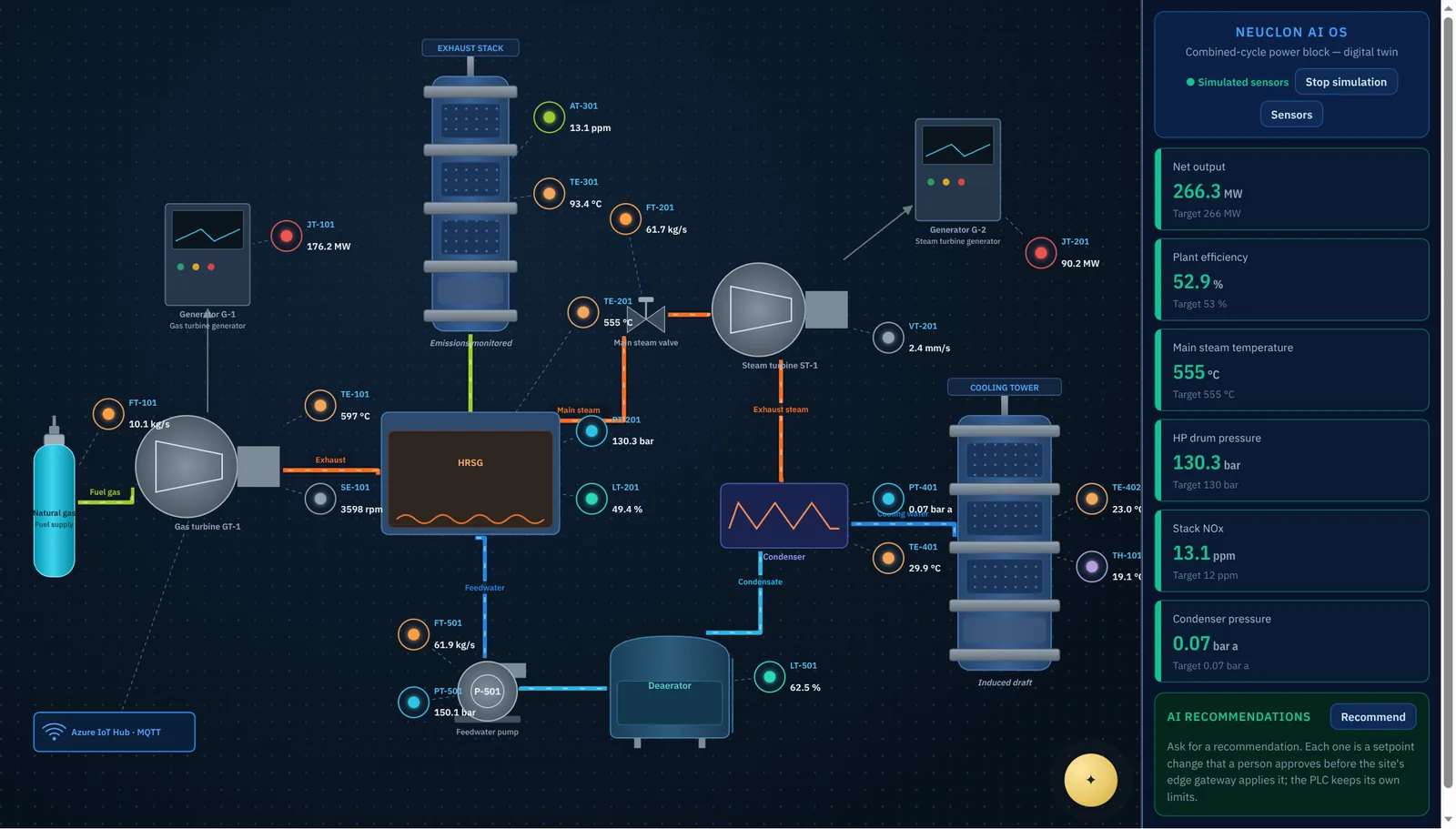
A process twin of a combined-cycle power block, shown with simulated sensor data. Each bubble is a tagged sensor (TE-201, PT-401, AT-301…) with its live value; the panel calculates the KPIs from those tags.
One canvas for every way your team draws the work
Flows and decisions
Describe a process, or attach a photo of the whiteboard, and Neuclon draws the steps, decisions and hand-offs. Tie a step to the tool that runs it and the map shows how much is waiting there right now.
The lean icon set, built in
Process boxes and data boxes, inventory triangles, supermarkets, FIFO lanes, kanbans, load leveling, kaizen bursts, push, pull and electronic flows, and a timeline that totals lead time against value-added time. Generate a current-state map from your steps, then improve it in the workshop.
Your floor, live, in 2D and 3D
Turn a tool of machines, stations, docks or trucks into a floor layout grouped by line or area. Each one shows its status and count as it changes; machines that go down pulse red, and material moves along the flows only while the step that feeds them runs.
Equipment, sensors and KPIs
Turbines, boilers, columns, tanks, pumps, heat exchangers, valves, panels and gateways drawn like a control-room schematic, with every sensor placed on the equipment it measures, pipes coloured by what they carry, and KPIs written as formulas over the tags.
Turn it, zoom in, fly to a machine.
Every layout and process twin opens in a 3D view. Drag to turn, scroll to zoom, double-click to fly to any machine or vessel. Labels count up as values change, a click opens the details, and a ticker along the bottom shows the KPIs and every change as it happens. Put it on a wall screen with the view turning slowly.
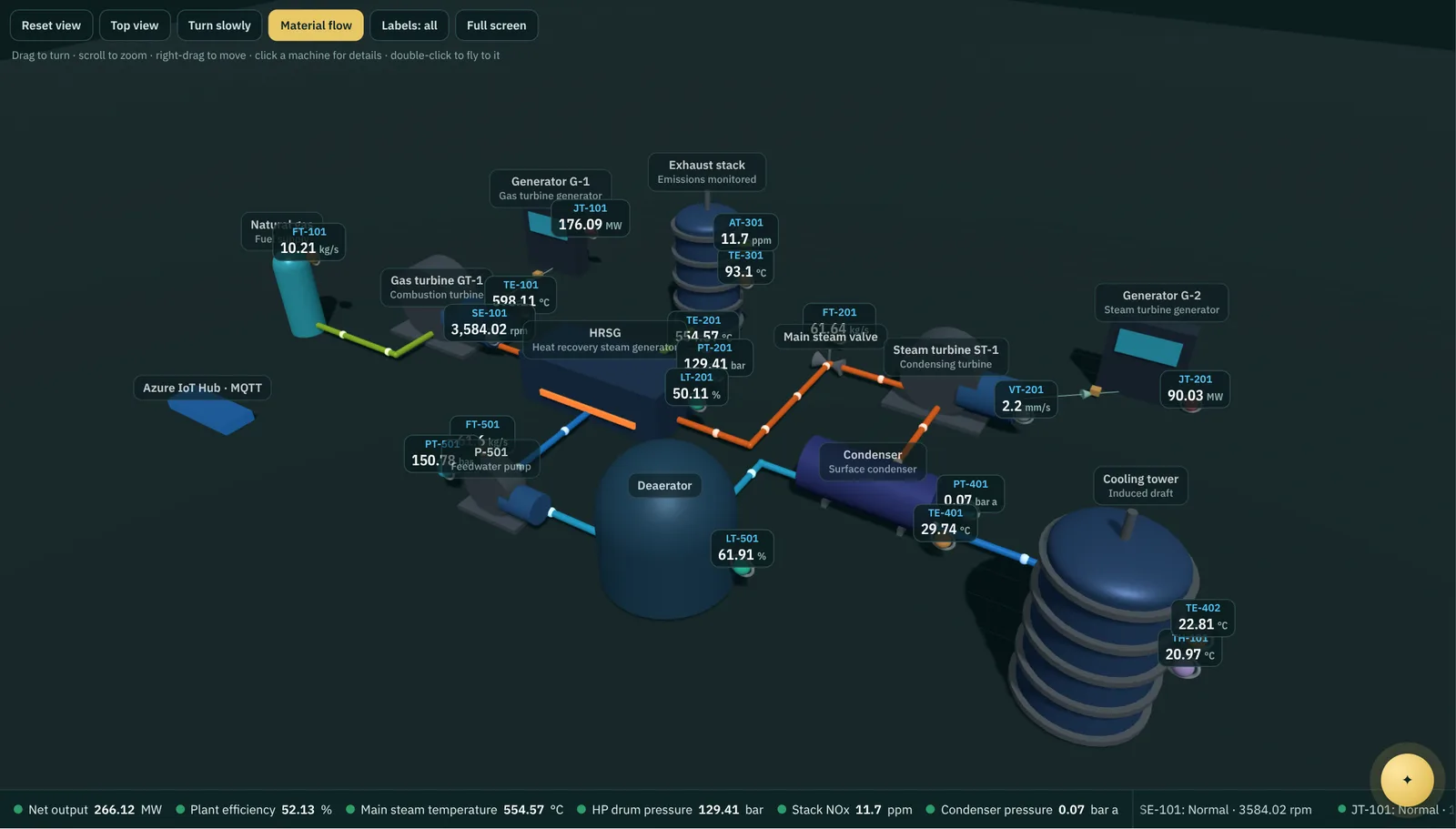
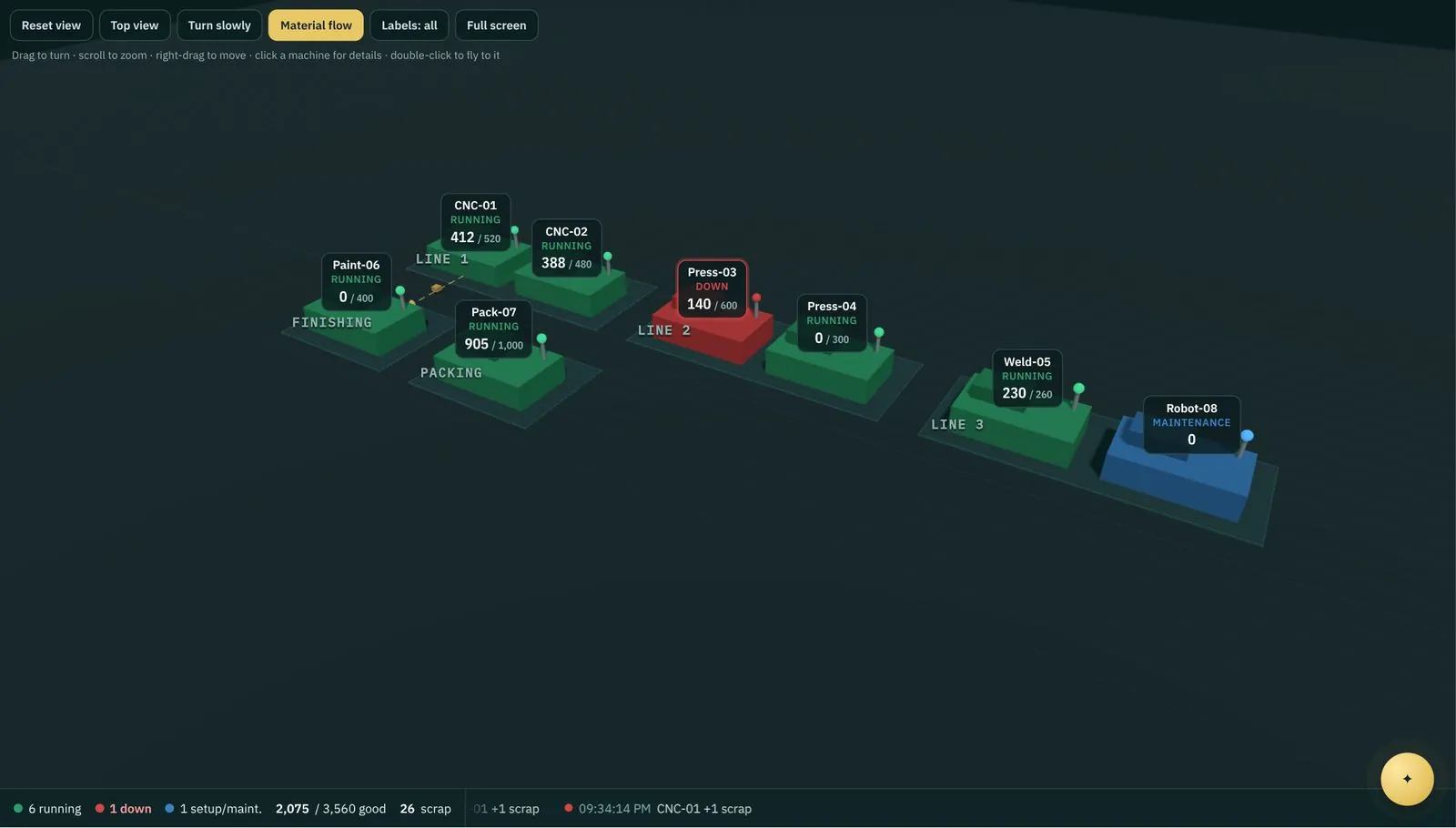
From the MES to the wall screen.
The manufacturing execution app connects machines, work orders, downtime and quality checks. Machine signals from a PLC gateway, or the big-button floor screen on a tablet, change a machine's state and count good and scrap; a stop opens a downtime event with its reason and alerts maintenance, and the minutes are recorded when it runs again.
Sensor data in, approved setpoints out
Readings from Azure IoT Hub or any gateway
An Event Grid subscription forwards device telemetry from Azure IoT Hub to Neuclon; any edge gateway or script can post readings directly. Values arrive by plant tag or IoT Hub name, with history for trends.
From the instrument list to the twin
Upload the instrument list you already keep (tag, sensor type, location, IoT Hub name, normal value) and a photo or P&ID. Neuclon creates the sensors with their ranges and draws the twin with every tag in place.
AI recommendations, approved by people
Neuclon proposes setpoint changes from the live values and KPIs, with its reasoning, confidence and expected effect. Only tags marked writable, only inside their limits, and only after a person approves; the site's edge gateway collects the approved change and the PLC keeps its own limits.
Change it by saying what you want.
Every canvas has a ✦ button. Ask for the change, such as “add a kaizen burst on the slowest process”, “add a vibration sensor on the steam turbine” or “group the steps into areas by team”, or attach a marked-up sketch. Neuclon changes only what you asked for, keeps every link and position you made, shows the result, and lets you undo it in one click.
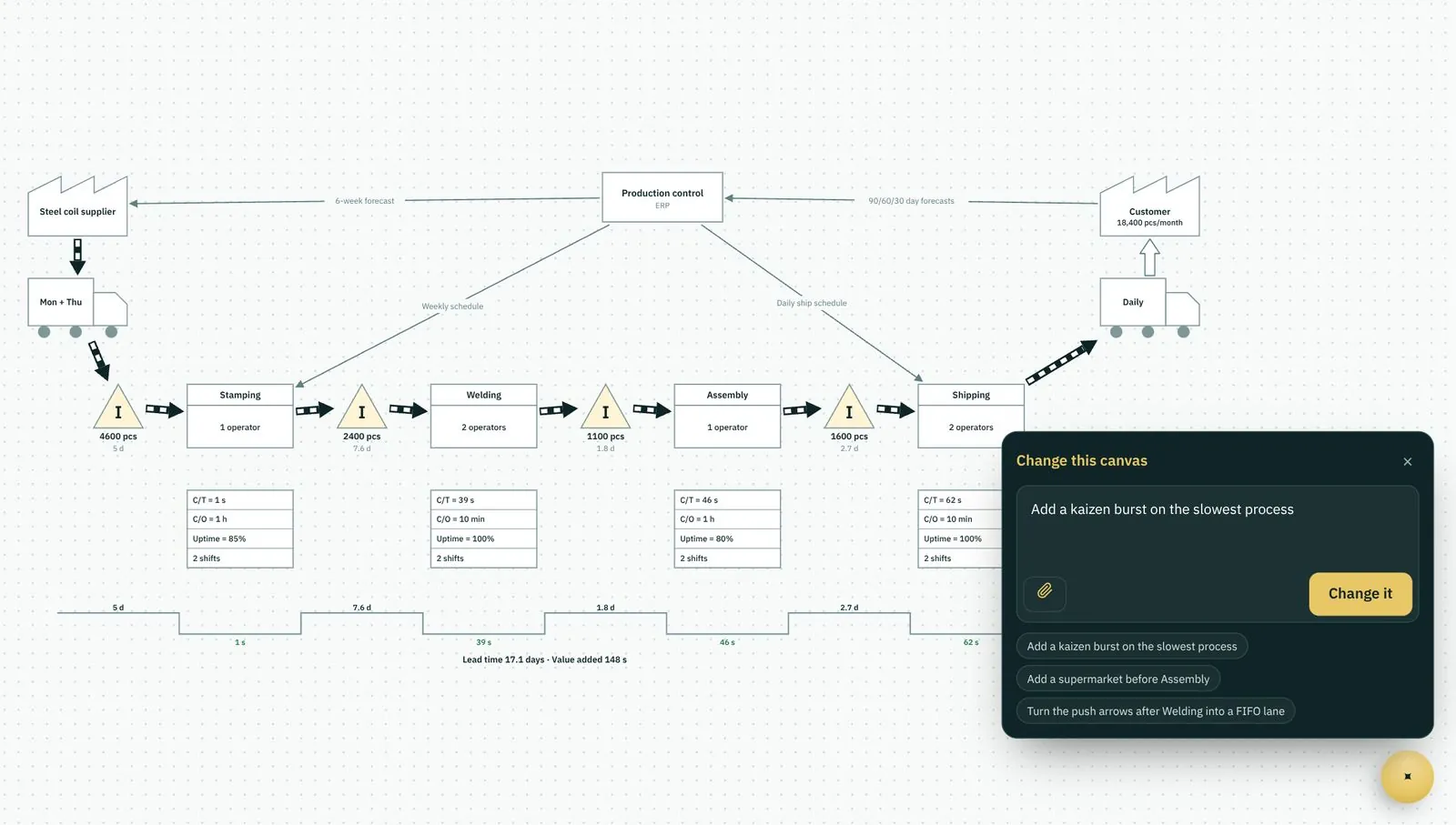
Start with the operation you already have.
Canvases, layouts, the MES app and process twins are in every Neuclon workspace. Connecting your plant, ERP and sensors is delivered with our consulting partners.